

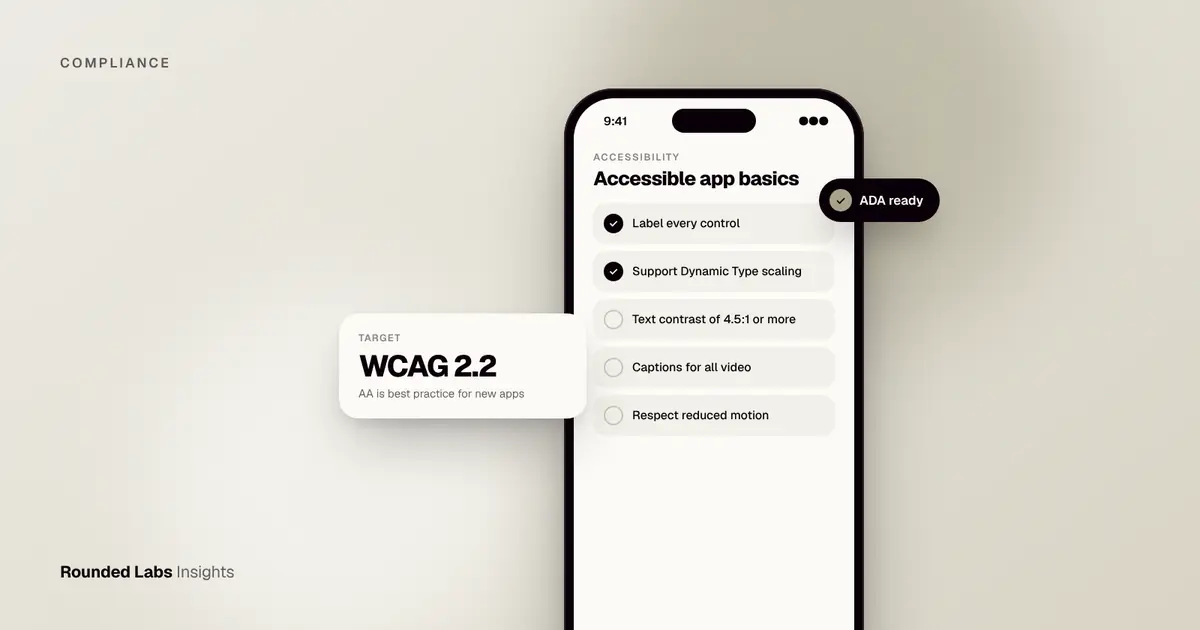
US apps that serve the public are widely expected to be accessible to people with disabilities under the Americans with Disabilities Act (ADA), and the practical standard everyone measures against is WCAG 2.1 or 2.2 at level AA. State and local governments now have an explicit rule from the Department of Justice, federal agencies follow Section 508, and private businesses face a steady stream of lawsuits over inaccessible websites and apps.
We build accessibility into apps from the first design, as we did for retail clients like Waterstones, and we work to both US and European rules. This guide explains what US law expects of apps, which WCAG level to aim for, how to test, what it costs and what to build. It is general information, not legal advice. Laws, deadlines and case law change, so check the official sources linked here and take advice from a qualified US lawyer before you rely on any point.
Key facts
- ADA Title III covers places of public accommodation. Courts have often applied it to the websites and apps of businesses that serve the public, though not every court agrees on how far it reaches.
- The DOJ’s 2024 rule under ADA Title II requires state and local government web content and mobile apps to meet WCAG 2.1 level AA, with phased deadlines that depend on the size of the entity. At the time of writing, check ADA.gov for the dates currently in force.
- Federal agencies and their suppliers follow Section 508, which incorporates WCAG 2.0 levels A and AA.
- WCAG 2.2 AA is the sensible target for any new app, because it includes WCAG 2.1 and adds criteria that matter on touch screens.
- Thousands of digital accessibility lawsuits are filed in the US each year, and most are aimed at ordinary consumer businesses rather than at large brands alone.
- Building accessibility in from the start adds a small share to a build (market estimates of 3 to 8%). Retrofitting later costs more.
Does the ADA apply to mobile apps?
The ADA became law in 1990, long before the first smartphone. It does not mention websites or apps, and there is still no single technical regulation that tells a private business which standard its app must meet. That gap is why this topic confuses so many founders. The practical answer is that US businesses treat accessibility as a legal expectation, because courts, the DOJ and plaintiffs’ lawyers all point to the same benchmark: WCAG.
The ADA has several parts, and which one applies to you depends on who you are.
Title I: employers
Title I covers employment. If you build internal apps for staff, such as scheduling, expenses or training tools, employees with disabilities may be entitled to reasonable accommodations, and an internal app that cannot be used with a screen reader can become an employment issue. This is the part of the ADA most often forgotten by teams who think only about public-facing products. If you are replacing paper or spreadsheets with a staff app, see internal staff apps for how those projects are scoped.
Title II: state and local governments
Title II covers public entities: states, cities, counties, school districts, transit agencies, public universities, libraries and special districts. The DOJ has long said that Title II applies to their web content and apps. In 2024 it turned that position into a rule with a named technical standard, WCAG 2.1 AA, described below. If you build apps for a public body, or sell software to one, this is the title that matters most.
Title III: places of public accommodation
Title III prohibits discrimination by private businesses that are places of public accommodation, such as shops, restaurants, hotels, banks, gyms, theatres, medical offices and many services. The DOJ has said for years that the web content of such businesses must be accessible (ADA.gov web guidance). Courts have split on the details. Some have said a website or app must have a connection to a physical place to be covered. Others have treated an online-only business as covered in its own right. A widely cited example is the Ninth Circuit’s 2019 decision involving Domino’s, which accepted that the ADA applied to the company’s website and app because they connect customers to its physical stores. Because the law differs by circuit, a business that sells nationwide has to assume it could be sued almost anywhere.
What “public accommodation” means for app owners
The safest planning assumption is simple: if your app lets the public buy something, book something, get information about a business or manage an account with a business that also has a physical presence, treat it as covered. If you run a pure software product sold to other businesses, your customers may still require accessibility from you through contracts, which is the reason many B2B buyers now ask for an accessibility conformance report.
Which US accessibility laws apply to which app?
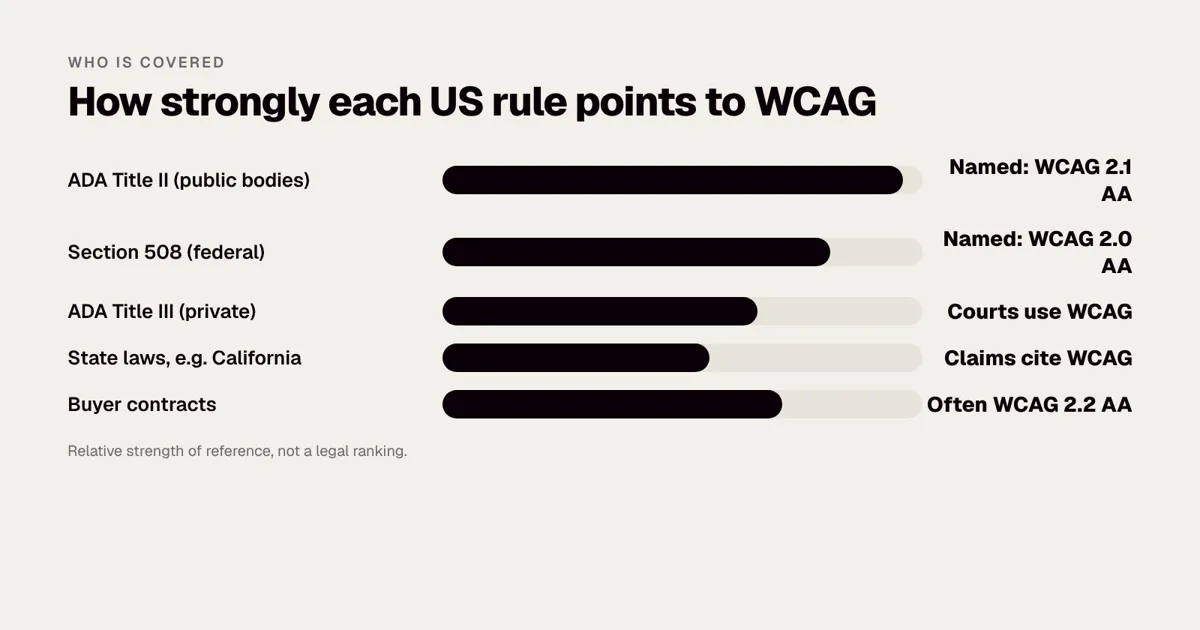
Several laws overlap. This table gives a first sort. It is a planning aid, not a legal opinion.
| Law or rule | Who it covers | What it expects of apps | Standard usually referenced |
|---|---|---|---|
| ADA Title I | Employers | Reasonable accommodation, including accessible staff tools | No fixed standard, WCAG commonly used |
| ADA Title II | State and local governments | Accessible web content and mobile apps | WCAG 2.1 AA (2024 DOJ rule) |
| ADA Title III | Private businesses open to the public | Equal access to goods and services, including digital | No fixed rule, WCAG 2.1 or 2.2 AA in practice |
| Section 508 | Federal agencies and their ICT suppliers | Accessible information and communication technology | WCAG 2.0 A and AA |
| Section 504 of the Rehabilitation Act | Recipients of federal funding | No discrimination, including in digital services | Often WCAG 2.1 AA in agreements |
| State laws, such as California’s Unruh Civil Rights Act | Businesses serving the public in that state | Equal access, with private rights of action | Courts often look to WCAG |
| CVAA | Certain communications and video services | Accessible advanced communications and video features | FCC rules |
Two practical points follow. First, you rarely need to know which law applies in order to decide what to build, because the answer is nearly always “WCAG 2.2 AA”. Second, the law matters a great deal for risk and for contracts. Selling to a federal agency makes Section 508 a contractual term. Selling to a city makes the Title II rule a procurement requirement. Selling to consumers in California exposes you to state claims as well as federal ones.
What does the 2024 DOJ rule require?
In April 2024 the DOJ published a final rule under Title II of the ADA requiring state and local governments to make web content and mobile apps conform to WCAG 2.1 level AA (ADA.gov: Title II web and mobile rule). It is the first time a US federal regulation has named a technical standard for mobile apps.
Who has to comply and when
The rule sets different compliance dates by size of entity. At the time of writing, the published framework is as follows, but the DOJ has the power to adjust dates and has signalled it may do so, so confirm the position on ADA.gov before you plan.
| Entity | Rule’s phased approach |
|---|---|
| State and local governments with a population of 50,000 or more | Earlier compliance date, set out in the rule |
| Governments with a population under 50,000 | Later compliance date, set out in the rule |
| Special district governments | Later compliance date, set out in the rule |
If you build apps for US public bodies, such as transit, parks, education, courts, libraries or council services, you should assume your client will ask for WCAG 2.1 AA in the contract and may ask for evidence. It is wise to build to WCAG 2.2 AA, because 2.2 is backward compatible with 2.1. An app that meets 2.2 AA also meets 2.1 AA, apart from the removed Parsing criterion, which has no practical effect on a native app.
What is covered and what is not
The rule applies to web content and mobile apps that a public entity provides or makes available, directly or through contractual arrangements. That last phrase matters. If a city pays a company to run a parking payment app, the city is responsible, and the contract should push the obligation down to the supplier. The rule includes limited exceptions, which at the time of writing include:
- archived web content kept only for reference or record keeping;
- pre-existing conventional electronic documents, such as old PDFs, unless needed to access a current service;
- content posted by a third party that the entity does not control, other than through a contract or similar arrangement;
- individualised, password-protected documents about a specific person;
- pre-existing social media posts.
The rule also lets an entity argue that full compliance would fundamentally alter a service or impose an undue financial and administrative burden, but those defences are narrow, must be documented by senior officials and still require the entity to provide access as far as possible. Do not plan a project around them.
What the rule means for app suppliers
If you are the supplier, the rule creates four concrete tasks:
- Put WCAG 2.1 AA (or better, 2.2 AA) into the specification as an acceptance criterion, not a wish.
- Agree how conformance is shown. A short accessibility conformance report, based on a recognised template, tells the buyer what you tested, how and what you found.
- Plan for remediation. Agree in the contract how defects found after launch are triaged and how quickly serious ones are fixed.
- Test on real devices. A public body will not be satisfied by a statement that you used a design system with accessible components. It will want to see journeys tested with screen readers.
Our guide to Section 508 for government apps covers the federal side in more detail, and What is a design system? explains why shared, tested components make this kind of conformance far easier to maintain.
What is WCAG, and which version should you use?
The Web Content Accessibility Guidelines are published by the World Wide Web Consortium (W3C). They are organised around four principles, often shortened to POUR: content must be perceivable, operable, understandable and robust (W3C WCAG 2.2). Each principle has guidelines, and each guideline has testable success criteria at level A, AA or AAA.
Versions in use
| Version | Published | Where you meet it |
|---|---|---|
| WCAG 2.0 | 2008 | Section 508 (the 2017 refresh), older contracts |
| WCAG 2.1 | 2018 | The 2024 DOJ Title II rule, many settlements, EU standards |
| WCAG 2.2 | 2023 | Best-practice target for new work |
Level A is the minimum and level AA is the standard that laws and contracts almost always require. Level AAA is aspirational and is not expected for an entire app, although some AAA criteria, such as enhanced contrast, are worth meeting where you can.
What WCAG 2.2 adds that matters on mobile
WCAG 2.2 added nine success criteria and removed one. Several are especially relevant to apps used with a finger rather than a mouse.
| Criterion | Level | What it means in an app |
|---|---|---|
| 2.4.11 Focus Not Obscured (Minimum) | AA | A focused control must not be fully hidden behind a sticky header, keyboard or banner |
| 2.5.7 Dragging Movements | AA | Anything done by dragging, such as reordering a list or using a slider, needs a simple alternative such as buttons |
| 2.5.8 Target Size (Minimum) | AA | Touch targets should be at least 24 by 24 CSS pixels, or have enough spacing |
| 3.2.6 Consistent Help | A | If you offer help, such as a chat button, put it in the same place on each screen |
| 3.3.7 Redundant Entry | A | Do not make users retype information they already gave in the same flow |
| 3.3.8 Accessible Authentication (Minimum) | AA | Do not rely on a memory or puzzle test to log in, and allow paste and password managers |
For a mobile app, the biggest practical effects are around drag alternatives, target size and login. A sign-in that forces users to retype a code from memory, blocks paste, or asks them to solve a puzzle fails criterion 3.3.8, and it also fails real people who rely on password managers or have cognitive disabilities.
How does WCAG apply to a native app?
WCAG was written for web content. A native iOS or Android app does not have HTML, so teams sometimes ask whether WCAG applies at all. It does, in effect, because the criteria describe outcomes (a control has a name, text can be resized, contrast is adequate) that translate directly to native code. The W3C has also published guidance on applying WCAG to non-web information and communication technologies, and the DOJ’s rule is explicit that WCAG 2.1 AA applies to mobile apps.
The translation works like this. Where WCAG talks about a “name, role and value” for user interface components, in a native app you provide an accessibility label, a trait or role, and a value, through the platform’s accessibility API. Where it talks about resizing text, you support Dynamic Type on iOS and font scaling on Android. Where it talks about keyboard access, you support external keyboards, switch control and the platform’s focus order. Apple and Google both publish detailed guidance (Apple Accessibility, Android accessibility).
Cross-platform frameworks can meet the same bar, but they need care. React Native and Flutter both expose accessibility properties, and a well-built app in either can pass a screen reader audit. The risk is custom-drawn controls that never tell the operating system what they are. If you are choosing a framework, see Flutter vs React Native in 2026 and What is a cross-platform app?, and ask whoever builds your app to show you how custom components are exposed to VoiceOver and TalkBack.
What does an accessible app need?
| Area | What to build |
|---|---|
| Screen readers | Every control labelled for VoiceOver and TalkBack; logical reading order; headings marked up |
| Text size | Support Dynamic Type and Android font scaling without clipped or overlapping text |
| Colour and contrast | Text contrast of at least 4.5:1 (3:1 for large text and key icons); never colour alone to convey meaning |
| Touch targets | Large enough with enough spacing (WCAG 2.2 minimum 24 by 24 CSS pixels; Apple and Google recommend larger, around 44 points and 48 dp) |
| Motion | Respect reduced motion settings; no flashing content above the thresholds |
| Forms | Visible labels, clear error messages that explain how to fix the problem |
| Media | Captions for video, transcripts for audio, audio descriptions where visuals carry meaning |
| Gestures | Simple alternatives to multi-finger gestures and dragging |
| Timeouts | Warn before a session expires and let the user extend it |
| Authentication | Support password managers, paste and passkeys; avoid cognitive tests |
The rest of this section goes through the areas that cause the most failures in real audits.
Screen reader support
VoiceOver on iOS and TalkBack on Android read out what an app tells them. Three things go wrong most often. Icon-only buttons have no label, so the screen reader announces “button” and nothing else. Reading order follows the visual layout in the wrong sequence, so a user hears the footer before the form. And custom components, such as a star rating or a carousel, are invisible to assistive technology.
Fix these by giving every interactive element a meaningful label that describes its purpose rather than its appearance (“Add to basket”, not “plus icon”), marking section titles as headings so users can jump between them, grouping related elements, and hiding purely decorative images from assistive technology. When something changes without a screen change, such as an error appearing or a basket count updating, announce it, otherwise a screen reader user will not know it happened.
Text size and layout
Many people raise their system text size, and a layout that works at the default size can break at the largest settings. Test the largest sizes the platform allows. Avoid fixed-height containers for text, allow labels to wrap, and let screens scroll. If a button label is clipped at large sizes, the control becomes unusable for exactly the people who needed the larger text.
Colour and contrast
Contrast ratios are measurable, which makes them the cheapest criterion to get right and the most common to get wrong. Light grey text on white, placeholder text that is too faint and text placed over photos are the usual offenders. Check contrast in the design stage, with the real brand palette, before a single screen is built. A design system that has tested colour pairs baked in saves repeated fixes. Also check dark mode separately, because a colour pair that passes in light mode can fail in dark mode.
Never use colour alone to show state. An error shown only in red, or a chart that relies on telling green from red apart, excludes the roughly one in twelve men and one in two hundred women with some form of colour vision deficiency. Add an icon, a text label or a pattern.
Touch targets and gestures
Small buttons close together are a problem for people with tremors, limited dexterity or large fingers, and for anyone using a phone on a train. Aim for generous targets with space between them. Provide a single-tap alternative for any swipe, pinch or drag. A swipe to delete a row should also be available as a button in an edit mode or a context menu.
Forms and errors
Forms are where most journeys succeed or fail. Use visible labels that remain on screen (not placeholders that vanish when typing starts), tell users what format you expect, mark required fields in text as well as with colour, and write error messages that say what is wrong and how to fix it. Move focus to the first error when a form is submitted, and announce it. Where the platform supports autofill and one-time code detection, enable it.
Motion, media and timeouts
Respect the system “reduce motion” setting by replacing large animations and parallax with simple fades. Do not flash content more than three times a second. Provide captions for video and transcripts for audio. If a session times out, warn the user in advance and let them extend it, especially in payment and booking flows where losing progress is costly.
Need your app checked against WCAG 2.2 AA? We review apps on real devices with screen readers and write up what we find, with the fixes priced as part of a fixed-price plan. Book a 30-minute call with a co-founder.
How do you build accessibility into the process?
Accessibility is cheapest when it is part of each stage rather than a final inspection. This table shows what to do at each point in a project.
| Stage | Accessibility task | Who does it |
|---|---|---|
| Discovery | Identify user groups and assistive technology they use; set WCAG 2.2 AA as an acceptance criterion | Product owner, designer |
| Design | Check contrast, target sizes, focus order and text scaling in the designs; annotate labels and headings | Designer |
| Build | Use native components, set labels and traits, support dynamic text, write unit and UI tests for key flows | Developers |
| QA | Run screen reader journeys on real devices; large text and zoom tests; reduced motion checks | Testers |
| Release | Review open accessibility defects; update the conformance report and accessibility statement | Product owner |
| Live | Triage reports from users; regression test each release | Whole team |
If your project starts with a discovery phase, add accessibility there. What happens in a discovery phase explains how that work sets scope, and a specification written with accessibility criteria from the start avoids arguments later. See How to write an app specification for a structure you can adapt.
How should you test accessibility?
No single tool finds everything. Automated scanners catch perhaps a third of issues, mostly missing labels and contrast failures. The rest need a person.
- Automated checks in design tools and in code, to catch contrast and labelling issues early and on every build.
- Manual testing with VoiceOver and TalkBack on real devices, going through every key journey with the screen turned off or covered, which is the only honest way to find out what a blind user experiences.
- Large text and zoom testing at the largest system font sizes and with display zoom enabled.
- Keyboard and switch control testing where relevant, especially for tablets, web views and apps used with external keyboards.
- Voice control testing (Voice Control on iOS, Voice Access on Android), checking that visible labels match what a user would say.
- Testing with disabled users, which finds issues no checklist will, and builds a feedback loop you can reuse.
- Regression checks on every release, so fixes stay fixed.
A simple test matrix
| Journey | VoiceOver | TalkBack | Largest text | Reduced motion | Voice control |
|---|---|---|---|---|---|
| Create an account | Test | Test | Test | Test | Test |
| Log in and reset password | Test | Test | Test | n/a | Test |
| Search and filter | Test | Test | Test | Test | Test |
| Add to basket and pay | Test | Test | Test | Test | Test |
| Contact support | Test | Test | Test | n/a | Test |
Fill in the matrix with pass, fail or notes, and attach it to each release. It takes a trained tester a day or two for a mid-sized app, and the record becomes the evidence base for a conformance report. For general test planning see App testing explained: QA, UAT and beta testing and the app launch checklist.
What does accessibility cost?
These are market estimates, not quotes, and real costs depend on the size and state of the app. Our own projects are fixed price, agreed before development starts, and typically run from £30,000 to £250,000+; the pricing page explains how that works. Accessibility is a line within that scope, not an extra surprise.
| Situation | Market estimate | Notes |
|---|---|---|
| Designed in from the start | Roughly 3 to 8% added to the build | Mostly design discipline and testing time |
| Independent audit of an existing app | $5,000 to $20,000 | Depends on number of screens and journeys |
| Remediation of an audited app | Weeks of work, often $10,000 to $60,000 | Depends on findings and code quality |
| Conformance report for a buyer | A few days of effort after testing | Reusable if you keep it current |
| Ongoing regression testing | A small share of each release | Cheaper than repeated audits |
A lawsuit, a settlement and urgent remediation under pressure cost far more than doing the work calmly, and legal fees usually exceed the fix. How much does it cost to build an app in the US? 2027 prices in dollars covers the general cost picture for US apps, and The hidden costs of building an app lists recurring costs that people forget.
A worked example: a US retail app
Imagine a retail brand with a shopping app of about 40 screens, with search, product pages, basket, checkout, account and store finder. An audit finds 90 issues, which group into a handful of root causes.
| Root cause | Issues | Typical fix | Market estimate |
|---|---|---|---|
| Icon buttons with no labels | 25 | Add labels in the shared component | 2 to 4 days |
| Low-contrast secondary text | 15 | Update colour tokens | 2 to 3 days |
| Product carousel unreachable by screen reader | 8 | Rebuild the component | 5 to 8 days |
| Checkout errors not announced | 6 | Add announcements, move focus | 3 to 5 days |
| Text clipped at large sizes | 20 | Replace fixed layouts | 8 to 12 days |
| Drag-only reordering in wish list | 4 | Add move up and down buttons | 2 to 3 days |
| Login blocks paste | 2 | Allow paste and autofill | 1 day |
| Other | 10 | Various | 5 to 8 days |
The effort totals roughly 28 to 47 developer days, plus design and retesting. That is a few weeks of work, not a rebuild, and most of the gain comes from fixing shared components once. This is why a design system pays off for accessibility. It is also why teams who retrofit often discover that 90 findings do not mean 90 separate repairs.
How big is the lawsuit risk?
At the time of writing, plaintiffs file thousands of digital accessibility lawsuits a year in the US, with many concentrated in a few states and courts, and many aimed at retail, hospitality, financial services and healthcare. Most are settled before trial. The typical pattern is a demand letter that lists barriers found with screen reader software, followed by a request for remediation, a monitoring period and legal fees.
Why apps are exposed
Apps are exposed for three reasons. The standard is well known, so a missing label is easy to point to. Testing is cheap for a plaintiff, because a tester with VoiceOver can find failures in an hour. And the remedy, fixing the app, is clear, which encourages settlement.
What lowers your risk
- Meet WCAG 2.2 AA in the main journeys: sign-up, search, purchase, account and support.
- Publish an accessibility statement with a working way to report problems, and respond to reports quickly.
- Keep records: test results, a remediation log and release notes showing fixes. They show good faith and a working process.
- Make accessibility part of every release, so new features do not undo old fixes.
- Review third-party components, payment forms and embedded web views, because their failures can still become your problem.
If you receive a demand letter
This is general information, not legal advice. Do not ignore it and do not reply without advice. Contact a US lawyer with accessibility experience, preserve records, and at the same time start fixing the issues named, because repairs help in any outcome. Ask your app supplier for access to the code and test reports, and check your contract for what the supplier promised on accessibility. Who owns the code? explains why control of your repository and accounts matters when you need to act quickly.
Can an accessibility overlay make your app compliant?
No. Overlays and widgets that promise automatic compliance for a fee do not fix underlying issues in native apps, and they are widely criticised by disabled users and accessibility professionals. In some cases they interfere with the assistive technology a person already uses. Courts and plaintiffs have not treated them as a safe harbour, and businesses using them have still been sued. In a native app the usual overlay approach, a script added to a web page, does not fit at all. Spend the money on fixing the app itself.
What are VPATs and conformance reports?
Buyers, especially in government, education and large enterprises, often ask suppliers for a VPAT, which stands for Voluntary Product Accessibility Template. The completed document is called an Accessibility Conformance Report (ACR). It lists each relevant WCAG criterion and states whether your product supports it, partly supports it or does not, with remarks. Federal buyers use it with Section 508, and the official portal for that is Section508.gov.
A good report has four qualities. It is honest, because buyers check, and a report that claims full support but fails a basic screen reader test damages trust. It is specific, naming the platform, version and testing method. It is dated, because a report is only as good as the version it describes. And it is maintained, so you update it with each major release. Selling to enterprises often gets easier once you have one, in the same way a security questionnaire answer pack does. If you also need security evidence for enterprise buyers, see SOC 2 for startups.
What should an accessibility statement say?
An accessibility statement tells users what to expect and how to get help. Keep it plain and truthful:
- the standard you aim for, such as WCAG 2.2 AA;
- what you know does not yet meet it, and when you plan to fix it;
- how to contact you, with a monitored email address or form;
- the date it was last reviewed.
Link it from the app’s settings or about screen and from the store listing or website. Do not claim perfect accessibility, because no real app has it. A statement that admits known gaps and shows a plan is more credible than one that claims everything passes.
How does this compare with Europe?
The European Accessibility Act has applied since 28 June 2025 to many consumer digital services in the EU, including ecommerce, banking and transport apps, and it points to WCAG-based harmonised standards. If you sell in both markets, the good news is that building to WCAG 2.2 AA covers most requirements on both sides of the Atlantic. The differences are mainly in enforcement and paperwork. In the EU, national authorities supervise and can fine, and companies may need to publish an accessibility statement. In the US, enforcement is mostly through private claims and the DOJ. See App accessibility: the European Accessibility Act and UK guidance and European Accessibility Act for apps for the EU and UK rules, and UK accessibility regulations for public sector apps if you build for UK public bodies. Germany has its own national rules for public bodies, covered in BITV 2.0 accessibility in Germany.
Which scenario looks most like yours?
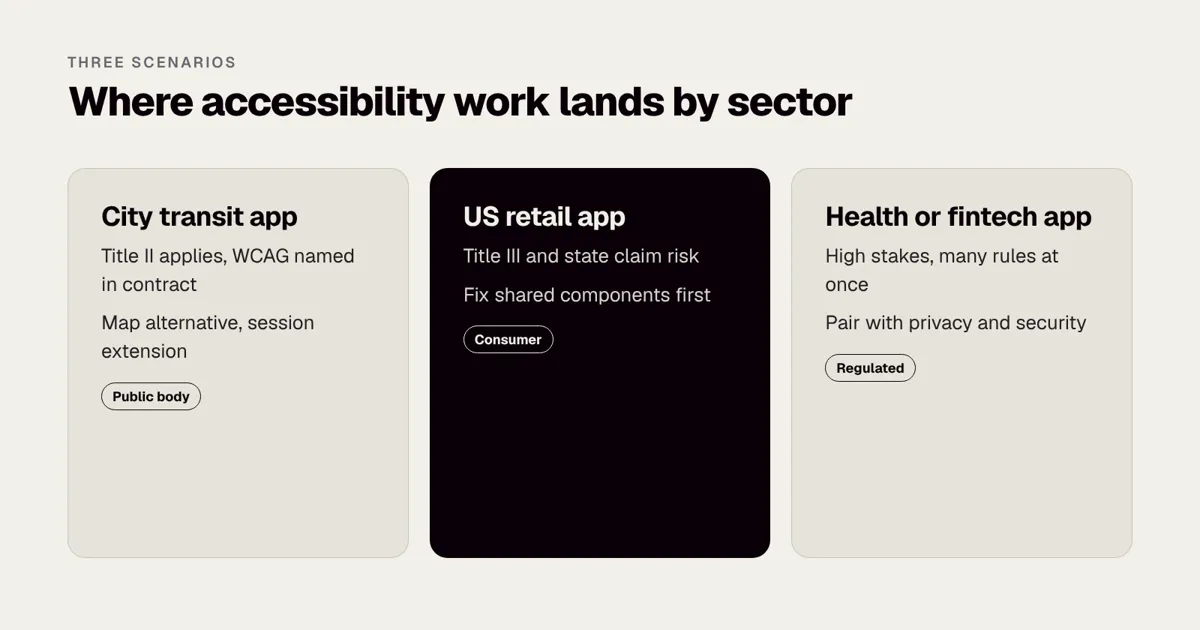
Accessibility work looks different by sector. These three scenarios are illustrative, not clients.
A city transit app
A mid-sized city commissions an app to show timetables, plan journeys and buy tickets. Title II applies, so the contract names WCAG 2.1 AA, and the supplier agrees to build to 2.2 AA. Key risks are the map, which screen readers handle poorly, and ticket purchase with a time-limited session. The fix is a text alternative to the map for journey planning, a visible countdown with a way to extend, and testing with transit users who are blind or have low vision. The conformance report is part of the delivery.
A direct-to-consumer retail brand
A brand with customers across several states has a shopping app. Title III and state laws are the risk, and a competitor was recently sent a demand letter. The team audits the app, finds the same patterns as the worked example above, and fixes the shared components first. They add an accessibility statement and a feedback address, and add screen reader checks to the release checklist. For more on this sector, see Retail and ecommerce apps for US brands.
A healthcare or fintech app
Both are covered by many laws at once, and the stakes of a failed task are high: a user who cannot read a medication schedule or confirm a payment is genuinely harmed. Accessibility sits beside privacy and security in the compliance plan. See How to build a HIPAA-compliant app, Healthcare app development in the US and Fintech app development in the US for the wider requirements, and App compliance in 2027 for common mistakes across regimes.
What mistakes should you avoid?
| Mistake | Why it hurts | What to do instead |
|---|---|---|
| Treating accessibility as a final audit | Fixes are late and expensive | Build checks into design, build and QA |
| Relying only on automated scanners | They miss most real barriers | Add manual screen reader testing |
| Buying an overlay | It does not fix a native app | Fix the components |
| Meeting the standard only on the home screen | Failures hide in checkout and settings | Test whole journeys |
| Ignoring third-party SDKs and web views | Their failures become yours | Review them and put requirements in contracts |
| No named owner | Issues sit in the backlog | Name one accountable person |
| Hidden or unmonitored feedback channel | Reports go unanswered and escalate | Publish and monitor a contact route |
| Designing with decorative colour palettes | Contrast fails across the app | Test colour pairs at design stage |
| Forgetting to retest after updates | New features break old fixes | Add regression checks to each release |
Who on the team owns accessibility?
Everyone, but someone must be accountable. Designers check contrast, sizes and focus order in designs. Developers use native accessibility APIs and test with screen readers. Testers include accessibility in every test plan. Product owners treat accessibility bugs like any other defect, with a priority and a deadline. Name one person who reviews accessibility before each release, and give them the authority to hold a release if a serious barrier is open.
If you outsource development, write accessibility into the contract and the acceptance criteria. Ask for evidence at each milestone, and ask to see a demo using a screen reader, not just a slide that says the app is accessible. Our 20 questions to ask an app developer before you sign includes the kind of evidence to request, and Fixed price vs time and materials explains why a fixed price is only meaningful when the scope, including accessibility, is written down.
How do you retrofit an existing app?
If your app is already live, you do not need to stop everything. Work in order of impact.
- Scope the critical journeys. List the five or six tasks most users must complete, such as sign-up, search, purchase and support.
- Audit those journeys first, with a screen reader and at large text sizes, and note failures with screenshots and recordings.
- Fix shared components. Buttons, inputs, navigation bars and dialogs fix many screens at once.
- Add guardrails. Lint rules, component tests and a short accessibility checklist in pull requests stop new problems.
- Publish a statement and a contact route, with an honest list of known gaps.
- Schedule the long tail. Group remaining issues and fix them across releases, with dates.
- Retest and update the conformance report.
If the audit shows the architecture itself is the barrier, for example a custom-drawn interface with no accessibility tree, the choice becomes whether to refactor or rebuild. Rebuild or refactor sets out that decision, and How to audit an existing app’s code covers a code review. If the app was built by someone else and you have only just taken it over, read How to take over an app built by someone else.
A 90 day plan for a typical product team
Teams often ask what a sensible first quarter looks like. This is a plan we would recommend for a team starting from little accessibility work.
| Weeks | Focus | Outputs |
|---|---|---|
| 1 to 2 | Baseline | List of critical journeys; quick screen reader pass; named owner; risk review with counsel |
| 3 to 4 | Audit | Written findings grouped by root cause; priority list |
| 5 to 8 | Fix shared components | Updated design tokens, labelled controls, scalable text, new tests |
| 9 to 10 | Fix journey-specific issues | Checkout, forms, errors, media |
| 11 | Retest with users | Session with disabled testers; revised findings |
| 12 | Publish | Accessibility statement, conformance report, release checklist |
Most teams find that the first two weeks change how they see their own app. A short session where everyone on the team uses the product with a screen reader is more persuasive than any slide.
How do you choose a supplier for accessibility work?
Look for evidence, not slogans. A capable supplier will:
- show examples of accessible apps they have shipped, and explain how they were tested;
- test on real devices with screen readers rather than only using automated tools;
- agree the standard (WCAG 2.2 AA) and the scope in writing before work starts;
- price the work as a fixed scope with named deliverables;
- hand over the conformance report, test records and any component documentation;
- leave you in control of the code and accounts.
We have 19 years of experience building apps, since 2007, including the Waterstones app, mobile site and eBooks API delivered in 12 weeks, and the Superdry app for a brand with 768 locations in over 100 countries. Accessibility is part of how we design and test. If you want to know where your app stands, our Tech Architecture Audit is £7,500 at a fixed price and looks at structure, security and scalability, which helps decide whether fixes or a rebuild make sense. Accessibility needs are scoped as part of any fixed-price project, and you can see how projects are priced on the pricing page.
What should you do next?
- Decide whether you are a public body supplier, a consumer business or a B2B vendor, because that sets your contractual pressure.
- Pick WCAG 2.2 AA as your target and write it into your specification.
- Run a one-hour screen reader walk through your main journeys this week.
- Name an owner and add accessibility checks to your release routine.
- Publish an accessibility statement and a contact route.
- Take advice from a US lawyer if you have received a letter or operate in a high-risk sector.
If you would like a view on your app, talk to a co-founder and we will tell you honestly what we see and what a fix would involve.
Frequently asked questions
Is WCAG compliance legally required in the US?
WCAG is not itself a law, but it is the standard that courts, the DOJ and settlements refer to. The DOJ’s Title II rule requires WCAG 2.1 AA for state and local governments, and Section 508 incorporates WCAG 2.0 for federal agencies. For private businesses, WCAG 2.1 or 2.2 AA is the usual benchmark, but check with a lawyer for your situation.
Which WCAG level should my app meet?
Level AA. It is the standard in US rules, EU law and most contracts. WCAG 2.2 AA is the best current target for new apps because it includes everything in 2.1 and adds criteria for touch and login. Level AAA is not expected for a whole app.
Can an accessibility overlay make my app compliant?
No. Overlays and widgets do not fix underlying issues in native apps, and disabled users and accessibility experts widely criticise them. Businesses that used them have still been sued. Fix the app’s components, labels, contrast and flows instead.
How often should we audit accessibility?
Before launch, after any major redesign, and at least once a year. Run automated checks on every build and a short manual screen reader pass on every release, so problems are caught while they are cheap to fix.
Does the DOJ rule apply to my private business app?
No. The 2024 rule applies to state and local governments under Title II. Private businesses fall under Title III, where there is no equivalent rule, but the same WCAG standard is used in claims and settlements. If you supply an app to a public body, the rule reaches you through your contract.
Does accessibility help other users too?
Yes. Larger text support, clear forms, captions and good contrast help older users, people in bright sunlight, people with a broken arm, and anyone in a hurry. Many accessibility features improve conversion and support costs for everyone.
What if my app uses third-party SDKs or web views?
You are still responsible for the experience users get. Review each third-party component with a screen reader, ask suppliers for their conformance reports, and replace components that cannot be fixed. Put accessibility requirements into vendor contracts.
Do I need to make old content accessible?
It depends on the law and the content. The Title II rule has limited exceptions for archived and pre-existing documents, but a document needed to access a current service is not exempt. For private businesses, treat anything customers need to use as in scope, and take legal advice on the rest.
Official sources and further reading
Talk it through with one of our co-founders. 30 minutes, no pressure.