

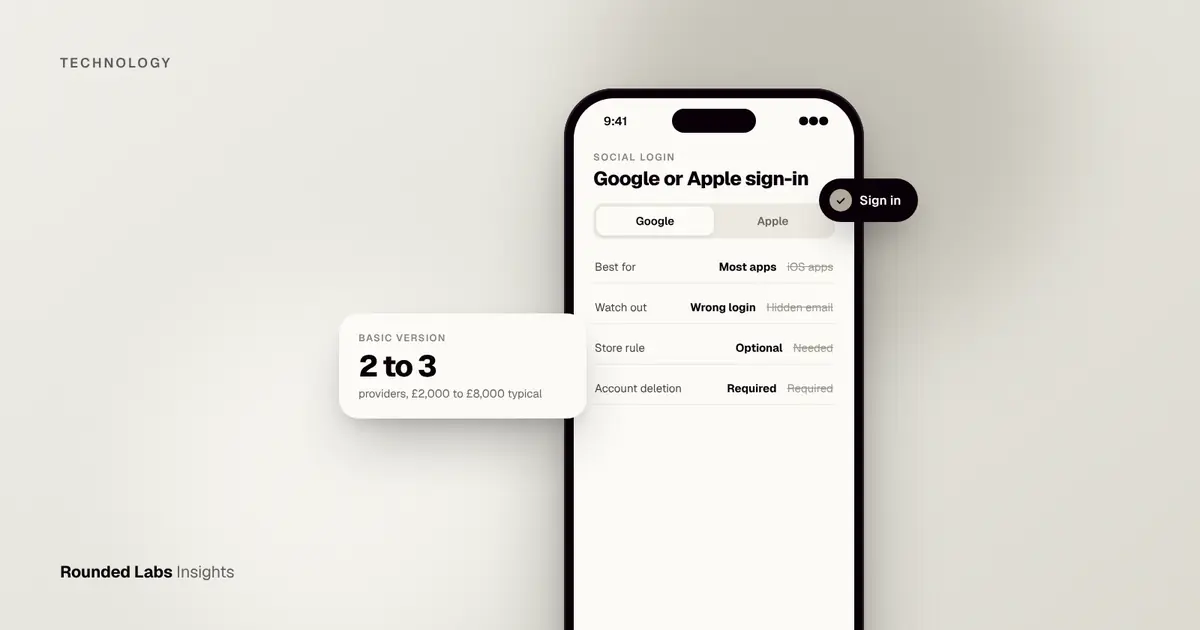
To add social login, you register your app with each provider (Google, Apple, Facebook), add their sign-in button, and let your server verify the identity token they return before creating or finding the user’s account. A basic version takes a developer about 1 to 3 weeks; polished account linking, testing and store compliance take longer. On iOS, Apple’s rules mean Sign in with Apple or an equivalent privacy-focused option is usually needed alongside other social buttons.
We have built login and onboarding for consumer apps such as Dabbl, a trading app for first-time investors, where every extra step before the first screen costs sign-ups. This guide explains how social login works, what to decide before you build, where projects go wrong and what to ask your developer. It is general information, not legal advice. If you need the wider build, see our mobile app development service. Our projects are always fixed price, agreed before development starts, as set out on the pricing page.
Key facts
- Social login relies on OpenID Connect, built on OAuth 2.0: the provider confirms who the user is, and your app never sees their password.
- Apple’s App Store rules require an equivalent privacy-focused login option if you offer third-party social login, and Sign in with Apple is the easiest way to meet this.
- Apple and Google both require apps that let people create an account to let them delete it from inside the app.
- Social login does not replace your own user records: you still need a database, account linking and a recovery path.
- Cost is mostly in edge cases, not buttons. Market estimates for adding two or three providers to an existing app run from about £2,000 to £8,000. Check the current store guidelines before you build.
How does social login work?
When a user taps “Continue with Google”, your app hands them over to Google for a moment. Google checks who they are, often with a session they already have on the phone, asks whether they agree to share their name and email with your app, and then hands your app a signed message saying “this is user 12345, and they have just signed in”. Your server checks that message is genuine and then either finds the matching account in your database or creates a new one. At no point does your app see the user’s Google password.
The standard behind this is OpenID Connect, a layer on top of OAuth 2.0. You do not need to implement it by hand. Providers and identity services supply SDKs, and our guides to What is OAuth 2.0? and What is passkeys? explain the building blocks in plain English. The official description of the standard is on the OpenID Foundation site, and the underlying framework is published as RFC 6749.
The one rule that matters most: never trust a token just because the app sends it. The server must verify it with the provider’s public keys.
The five steps, in plain English
- The user taps the button. Your app opens the provider’s sign-in sheet. On iOS and Android this is usually a native system sheet, not a web page, which feels quicker and more trustworthy to users.
- The provider authenticates the user. They may already be signed in on the device, in which case this is one tap and perhaps a fingerprint or face check.
- The user consents. The provider shows what your app is asking for. Good apps ask only for name and email.
- The provider returns a token. The main one is an ID token, a signed block of data that says who the user is. Some flows also return an authorisation code that your server can exchange for further tokens.
- Your server verifies and acts. It checks the signature and the details inside the token, then signs the user in to your own system and issues your own session.
Step five is the part developers sometimes skip when rushing, and it is the part that matters most for security. Without it, anyone who can send your server a made-up message can claim to be anyone.
Terms you will hear from your developer
| Term | What it means | Why it matters to you |
|---|---|---|
| ID token | Signed proof of who the user is, issued by the provider | Your server must verify it before trusting it |
| Access token | Permission to call the provider’s APIs on the user’s behalf | You only need it if you read extra data from the provider |
| Refresh token | Long-lived credential to get new access tokens | Store it securely or do not request it at all |
| Scope | The kind of data you ask for, such as email or profile | Ask for the minimum; every extra scope adds friction and privacy duty |
| Subject (sub) ID | The provider’s stable identifier for that user | The right key for linking accounts; emails can change |
| Nonce | A one-time value that stops a token being replayed | A check your developer should always include |
| Redirect URI | The address the provider sends the user back to | Must match what you registered, or sign-in fails |
If a quote mentions none of these, it is worth asking how the developer plans to verify tokens on the server. Our 20 questions to ask an app developer before you sign is a good companion list.
Which providers should you offer?
| Provider | Best for | Watch out for |
|---|---|---|
| Almost every consumer and business app, strong on Android | Users with several Google accounts pick the wrong one | |
| Apple | Any iOS app that offers other social buttons | Users can hide their email behind a relay address |
| Facebook / Meta | Social, community and gaming apps | Declining trust among some users, app review for extra data |
| Microsoft | Work tools and B2B apps | Personal and work accounts behave differently |
| Recruitment and professional networks | Narrow data access | |
| X and others | Niche audiences | Changing developer terms and API access |
Offer two or three, not six. Pick the providers your audience already uses. A consumer app usually needs Google plus Apple. A B2B tool is better served by Microsoft and Google, since staff already have work accounts.
How to decide with your own data
You do not have to guess. If you already have a website or an earlier version of the app, three pieces of evidence help.
- Device split. If most of your users are on iPhones, Apple matters more; if Android dominates, Google carries the weight. Your analytics will show it.
- Email domains. A sample of sign-up emails tells you quickly whether your audience uses Gmail, Outlook, iCloud or company addresses.
- Competitor apps. Look at what the three closest competitors offer on their sign-in screens. Users arrive with habits, and matching them reduces thinking time.
What each provider is like to work with
Google. Google’s identity tools are mature and well documented, and the Google Identity developer site covers Android, iOS and web. Setup involves a project in the Google Cloud console, an OAuth consent screen and client IDs for each platform. If you only request basic profile information, review requirements are light. The common support issue is the account chooser: a user with a work and a personal account taps the wrong one and thinks they have lost their data.
Apple. Apple’s service is described on the Sign in with Apple page. You enable the capability in your developer account, create the identifiers and keys, and add the button. Two quirks matter. First, Apple gives you the user’s name only the first time they authorise your app, so your server must store it immediately. Second, users can choose to hide their email, in which case you receive a private relay address that forwards to their real inbox. Email sent to a relay address needs your sending domain registered with Apple.
Facebook and Meta. The Meta for Developers site documents Facebook Login. Basic profile and email are available with little friction, but anything beyond that goes through app review, which can take weeks and sometimes fails for reasons that feel arbitrary. Many founders find the audience trust is lower than it was a few years ago, so check your own users before adding it.
Microsoft. For work and education users, Microsoft’s identity platform, documented on Microsoft Learn, is the natural choice. It supports both personal accounts and organisation accounts, and these behave differently: organisation tenants may block third-party apps until an administrator approves them. For B2B products that is a real sales issue, not just a technical one.
LinkedIn, X and others. These make sense only where the audience lives there, such as recruitment. Their developer terms and API access change more often, so budget for maintenance.
What should you compare before choosing social login at all?
Social login is one option among several, and it is not always the best one. The table below compares the main ways a user can get into an app.
| Method | Friction | Security | Support burden | Best for |
|---|---|---|---|---|
| Email and password | High: typing, rules, forgotten passwords | Depends on your handling and the user’s habits | High: resets and lockouts | Apps that need their own control of accounts |
| Social login | Low: one or two taps | Strong, as strong as the provider account | Medium: linking and lost provider accounts | Consumer apps wanting fast sign-up |
| Email code or magic link | Medium: leave the app and return | Good if the inbox is secure | Medium: delayed or filtered emails | Occasional-use apps |
| Phone number and SMS code | Medium | Weaker: SIM swapping and delivery issues | Medium to high: SMS costs and failures | Markets where phone is the main identity |
| Passkeys | Very low once set up | Very strong, resistant to phishing | Low once understood | Apps with repeat users and modern devices |
| Biometric unlock after sign-in | Very low | Strong for local access | Low | A second step on top of any of the above |
For most apps, the best set is an email option plus Google and Apple, with passkeys as an upgrade for returning users. Our guides on adding user login and sign-up, adding biometric login and passkeys show how these fit together.
When social login is the wrong answer
- Children’s apps. Providers generally require users to be above a minimum age, and your duties to children are tighter. Read COPPA and apps used by children if you serve US families.
- High-assurance products. Banks and health services often need extra identity checks that no social provider can supply; see How to add two-factor authentication to your app.
- Closed enterprise tools. Where the employer controls identity, your customers will want single sign-on through their own directory rather than consumer buttons.
- Audiences that distrust the big platforms. Some privacy-focused users will not tap any of these buttons, so an email route must always exist.
What do the app store rules say?
Apple’s App Review Guidelines (section 4.8) say that apps using a third-party or social login service must also offer an equivalent login option that limits data collection to name and email, lets users keep their email private, and does not track them for advertising without consent. Sign in with Apple meets all of this, so most teams simply add it. Apps that only use their own email and password system are exempt, as are some enterprise and education apps.
Apple also requires in-app account deletion for apps with account creation (section 5.1.1), and Google Play has a matching requirement. If someone signs in with Google, deleting the account in your app must remove your records and, where Apple’s token is used, revoke it. Rules change, so read the current text before submission (Apple App Review Guidelines). Google’s Play policies are published through Android Developers.
The rejection patterns we see described
At the time of writing, these are the usual reasons a login flow is flagged in review. Treat them as a checklist, not a guarantee.
| Reason | What it looks like | Fix |
|---|---|---|
| No equivalent option | Google and Facebook buttons but no Sign in with Apple | Add Sign in with Apple, or another option that meets the same privacy tests |
| No in-app deletion | Account can be deleted only by emailing support | Add a “Delete account” route inside the app |
| Reviewer cannot sign in | App requires a work or invite-only account | Supply a working demo account in the review notes |
| Forced extra data | Asks for phone number or birthday right after social sign-in with no clear reason | Ask later, and only when needed |
| Broken after sign-in | Sign-in works but the first screen crashes for new users | Test with brand-new accounts and hidden-email accounts |
Our guide to why Apple rejects apps, and how to avoid it goes deeper, and the app launch checklist has a login section you can copy.
How do you wire it up: native SDKs, a managed service or your own code?
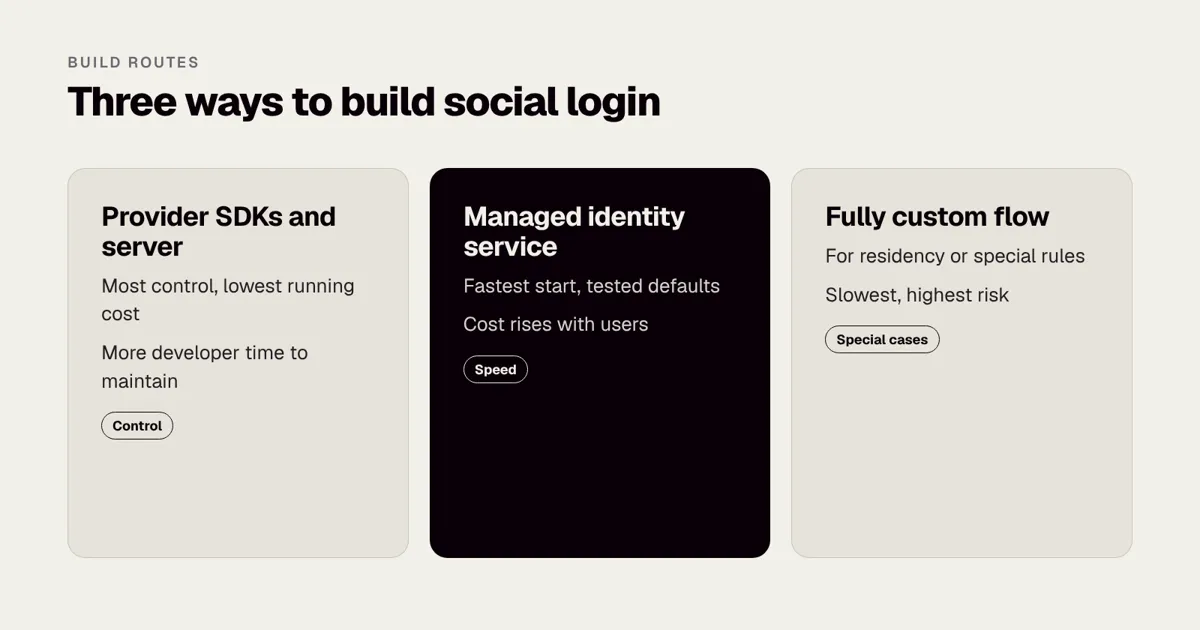
There are three practical ways to build social login, and the choice affects cost, speed and long-term flexibility.
Route 1: provider SDKs plus your own server. Your app uses Google’s, Apple’s and Meta’s SDKs directly, then sends the token to your backend, which verifies it and manages accounts. You keep full control and pay no per-user fee. The cost is more developer time, because you maintain each integration.
Route 2: a managed identity service. A service such as Firebase Authentication, Auth0 or Clerk sits between your app and the providers. It handles token checks, account linking rules and session handling. This reduces build time and gives you tested defaults, but adds a running cost that rises with users, and a supplier dependency. Our comparisons of Auth0 vs Firebase Auth and Clerk vs Auth0, and our explainer on backend as a service, cover the trade-offs. You can see the vendors’ own descriptions on Firebase Authentication and Auth0.
Route 3: a fully custom flow. Your team builds the OpenID Connect handling itself, usually in the backend. This makes sense only for unusual requirements, such as strict data residency or a platform that must run without third-party services. It is slower and riskier for a typical consumer app.
| Question | Route 1 | Route 2 | Route 3 |
|---|---|---|---|
| Build time | Medium | Short | Long |
| Running cost | Lowest | Rises with users | Lowest, plus upkeep |
| Control of data | Full | Shared with supplier | Full |
| Risk of security mistakes | Medium | Lower | Higher |
| Switching later | Moderate | Harder, depends on export options | Easiest |
| Best for | Most funded consumer apps | Small teams and fast launches | Special requirements |
Which route to choose
- You have a small team and a launch date: Route 2, and check the supplier’s data export and pricing at your expected user count.
- You already have a backend and want low running costs: Route 1.
- You have regulatory or residency constraints: Route 3, or Route 1 with a self-hosted identity layer, and take advice.
If you are unsure, ask your developer to price Route 1 and Route 2 side by side, with the running cost at 1,000, 10,000 and 100,000 users. A fixed build price is more useful when the running-cost curve is written next to it.
How should the server verify a sign-in?
This section is for you to share with your developer, or to use when reading a quote. A correct server check includes all of the following.
- Verify the signature using the provider’s published public keys, and refresh those keys on a sensible schedule because providers rotate them.
- Check the issuer. The token must come from the provider you expect, not just any signer.
- Check the audience. The token must have been issued for your app’s client ID. A token issued for someone else’s app must be refused.
- Check the expiry. Tokens are short-lived by design.
- Check the nonce you generated for this attempt, to block replay.
- Read the email only with its verified flag. Providers say whether they have verified the address; do not assume.
- Use the stable subject ID as the link between the provider and your user record.
- Issue your own session and keep the provider token out of long-term storage unless you need it.
Security mistakes to avoid
- Trusting the app. The app can be modified by an attacker. The server decides, not the phone.
- Matching accounts on email alone. Two different people can hold the same address at different providers, and some providers do not verify emails.
- Skipping the audience check. This lets a token issued to a different app be used against yours.
- Putting secrets in the app. Client secrets for server flows belong on the server, never in the app bundle.
- Logging tokens. Tokens in log files are credentials sitting in plain sight.
- No rate limits. Even with social login, your endpoint needs protection against abuse.
For a wider review, the OWASP project publishes mobile security standards, and our mobile app security checklist puts them in plain English.
What goes wrong with account linking?
This is where most of the effort goes. A user signs up with email, later taps “Continue with Google” using the same address, and you must decide what happens.
- Link them automatically only when the provider has verified the email. Otherwise an attacker can claim someone else’s account by registering a provider account with their address.
- Ask the user to prove ownership (a code sent to the existing email) before merging.
- Handle hidden emails. Apple’s relay address means two sign-ins can look like two people.
- Plan for a lost provider account. If a user’s Google account is closed, they need another way back in, such as email recovery or a passkey.
- Store the provider’s stable user ID, not just the email, as the key for the link.
A decision table for the common cases
| Situation | What happens | Recommended handling |
|---|---|---|
| New user, first sign-in with Google | No account exists | Create the account, store the subject ID and verified email |
| Existing email account, same address on Google, verified | Looks like the same person | Offer to link; confirm with a code or existing password for safety |
| Existing email account, Google email not verified | Could be an impostor | Do not link; ask the user to sign in the old way first |
| User signs in with Apple using a hidden email | Relay address differs from their email account | Treat as a new identity; offer a “link existing account” step in settings |
| User has Google and Apple accounts with the same email | Two provider identities, one person | Link both to one record after proof of ownership |
| User changes email at the provider | Old email no longer matches | Match on subject ID, ask the user to confirm the new email |
| User loses access to the provider account | Cannot sign in | Offer email recovery or a passkey registered earlier |
A worked scenario: the duplicate account
A user, Priya, signs up to a booking app with her work email and a password. Three months later she downloads the app on a new phone and taps “Continue with Apple”, choosing to hide her email. Apple returns a relay address and a subject ID the app has never seen.
A naive build creates a second account, and Priya sees none of her bookings. She contacts support, and the team spends time merging records by hand.
A better build notices that the sign-in is new and, after creating the account, offers a clear prompt: “Already have an account? Link it so your bookings come with you.” Priya enters her old email, receives a code, confirms and the two identities are joined. Support never hears about it. Designing this prompt, and the screens around it, is a normal part of the work and a good reason not to price social login as “just buttons”.
Plan for the user who wants out of a provider
Users sometimes want to stop using Facebook or Google, and your app should not lock them in. Let people add a second sign-in method in settings, and let them remove one as long as another remains. If the last method is removed, force them to add a new one first. This single rule prevents a large category of support requests.
What privacy duties come with it?
Social login hands you personal data, so treat it that way. Ask only for scopes you use (name and email is usually enough), state what you collect in your privacy policy, and match your store privacy labels. In the UK and EU, the lawful basis and data minimisation rules apply; see UK GDPR for mobile apps and App store privacy labels. Under the rules in the US, California’s CCPA gives users rights to access and delete what you hold; see US state privacy laws and your app.
If your app is for children, social login is generally not suitable at all.
A privacy checklist for the sign-in screen
- A short line near the buttons linking to your privacy notice and terms.
- No pre-ticked marketing consent hidden behind a social button.
- Only the scopes you need, with a reason you can state in one sentence.
- A record of when each user agreed to your terms, and which version.
- A process to delete the user’s data when they ask, including any copies of provider tokens.
- Consistency between what the sign-in screen says and what your store privacy labels say.
The Information Commissioner’s Office publishes practical guidance for UK organisations on lawful basis, transparency and data minimisation. Laws and guidance change, so check the official source and take legal advice for your own situation. Nothing here is legal advice.
Cross-border points
Social login can move data across borders. If your users are in the UK or EU and your provider or hosting is elsewhere, there are rules on international transfers. If you serve US users in several states, privacy laws differ. For an overview of how these rules interact with a mobile product, see App compliance in 2027 and GDPR for US companies launching an app in Europe.
How do you handle account deletion and token revocation?
Both Apple and Google expect users to be able to delete their account from inside the app. With social login, deletion has a few extra steps that are easy to miss.
- Authenticate again. Ask the user to confirm it is them, ideally by signing in with the same method.
- Delete or anonymise your own records according to your retention policy. Some records, such as invoices, you may need to keep for legal reasons; tell the user.
- Revoke the provider token where required. Apple expects apps that use Sign in with Apple to revoke the user’s token when they delete the account. Your server does this through Apple’s token revocation service.
- Tell connected systems. Analytics, email tools and support systems may also hold the user’s details.
- Confirm to the user that deletion is complete, and explain any delay.
Apple also provides notifications to your server when a user stops sharing data with your app or deletes their Apple account. Building a small handler for these keeps your records honest, and it is worth including in the scope. For more on the data side, see How to add data export to your app and How to add audit logs to your app.
What does it cost, and a worked example
Market estimates for adding social login to an existing app with its own backend are roughly £2,000 to £8,000 ($2,500 to $10,000, or €2,300 to €9,300) for two or three providers, including testing on both platforms. Using a managed identity service reduces build time but adds a running cost and a supplier dependency; see Auth0 vs Firebase Auth. For a full comparison, read What does social login cost to build in an app? and App feature costs.
A realistic scenario: a fitness-booking app wants Google and Apple sign-in, plus existing email accounts.
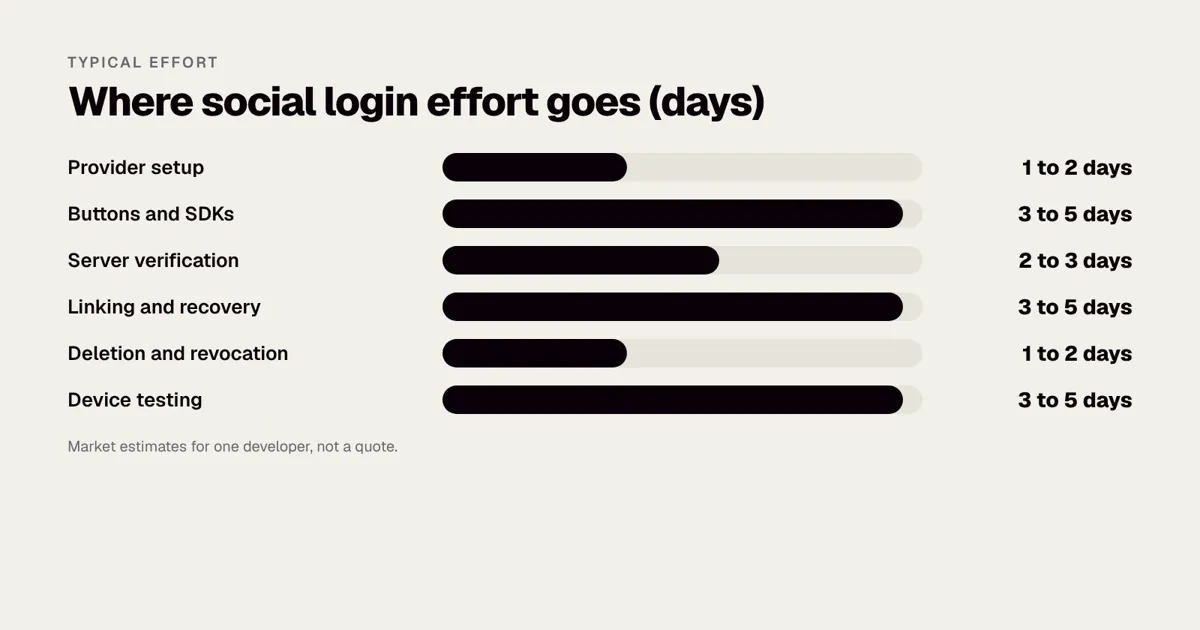
| Step | Typical effort |
|---|---|
| Register app, keys and consent screens for each provider | 1 to 2 days |
| Add buttons and SDKs on iOS and Android | 3 to 5 days |
| Server token verification and account creation | 2 to 3 days |
| Account linking, hidden email and recovery | 3 to 5 days |
| Account deletion and token revocation | 1 to 2 days |
| Testing on real devices and store review fixes | 3 to 5 days |
That is about 3 to 4 working weeks of one developer in total when done carefully, which is why quoted estimates vary so much. Our own projects are fixed price agreed before development starts, typically £30,000 to £250,000+; see the pricing page. Social login is usually one feature inside a larger build, not a project on its own.
Why the range is so wide
| Factor | Pushes the cost down | Pushes the cost up |
|---|---|---|
| Existing backend | Already has user records and sessions | Needs a user system built first |
| Platforms | One platform | iOS, Android and web |
| Providers | Google and Apple only | Facebook, Microsoft and LinkedIn as well |
| Account linking | New app, no existing users | Large existing user base with duplicates to merge |
| Identity service | Managed service with tested defaults | Custom build with its own testing |
| Compliance | Simple consumer app | Health, finance or children’s data |
| Testing | A handful of test accounts | Real devices, hidden email, expired tokens, offline cases |
What a good quote should list
Ask for a written scope that names each provider, each platform, the server work, the linking rules, deletion, testing and store submission support. A quote that says only “social login: £3,000” is hiding choices. The hourly and daily figures behind market estimates differ widely between suppliers, so compare scope first and price second. Our guide to why quotes differ so much shows how to read them, and Fixed price vs time and materials explains why we agree a fixed price before development begins.
Unsure whether social login suits your users? Sometimes email codes or passkeys convert better. Book a 30-minute call with a co-founder.
How do you test social login properly?
Testing is where a lot of the effort sits, because the failures happen in situations a developer’s own phone does not produce. Use the checklist below before every release that touches sign-in.
The test matrix
| Test | Why it matters |
|---|---|
| Brand-new user with each provider | Confirms account creation and the first screen |
| Returning user with each provider | Confirms the session and data match |
| Apple with hidden email | Catches relay address issues |
| Google with several accounts on the device | Catches wrong-account problems |
| Existing email user who then uses social login | Tests linking logic |
| User with no network mid-flow | Checks error messages and recovery |
| User cancels at the provider sheet | The app must return calmly, not crash |
| Expired or tampered token sent to the server | The server must refuse it |
| Account deletion, then sign in again | Confirms the deletion is real and the user can start again |
| Fresh install on an older operating system version | Provider SDKs vary in support |
| Reviewer demo account | Prevents avoidable store rejection |
Run it on real devices
Simulators do not behave like real phones for sign-in, because they lack the same system accounts and security hardware. Test on at least one recent iPhone, one older iPhone, one recent Android phone and one older or lower-spec Android phone. Our guide to app testing, QA and UAT explains how this fits into a full test plan.
Monitor after launch
Add basic measurement from day one. Track how many users start sign-in, how many finish, which provider they chose and where they drop out. A sudden fall in completion for one provider often means a key has expired or a setting has changed on the provider’s side. Our guides on adding an analytics dashboard and adding audit logs cover the tooling.
What does a project timeline look like?
For a typical consumer app with an existing backend, social login runs along these lines. These are market estimates and assume a developer who has done it before.
| Week | Work |
|---|---|
| Week 1 | Provider registrations, keys, consent screens, sign-in buttons on one platform, server verification |
| Week 2 | Second platform, account creation, linking rules and screens |
| Week 3 | Deletion, token revocation, hidden-email handling, recovery routes |
| Week 4 | Device testing, store review preparation, fixes, release |
Some of this can run in parallel with other work. Provider registration, especially Apple and Meta app review, has waiting time, so start it early. Our overview of how long it takes to build an app gives realistic timelines across a full project.
What mistakes do founders make most often?
- Treating it as a button. The buttons are the easy part; linking, deletion and recovery are the work.
- Forgetting Apple. Adding Google and Facebook, then discovering the review team wants an equivalent option.
- Asking for too much data. Requesting birthdays, friends lists or phone numbers lowers approval rates and raises privacy duties.
- Having no fallback. If the only way in is a single provider, a provider outage or closed account locks users out.
- Using email as the only key. This breaks as soon as users hide, change or share emails.
- Ignoring existing users. Adding social login to an app with an existing user base needs a migration and linking plan.
- No deletion path. A common cause of store rejection and one that is cheaper to build at the start.
- Skipping real-device tests. Many bugs appear only on an actual phone with real system accounts.
- Locking in a supplier without checking pricing. A managed service that is cheap at 500 users can be expensive at 500,000. Check the vendor’s current pricing page.
- No monitoring. Without data on sign-in completion, you will not notice a broken provider key until support tickets arrive.
What does a good result look like in a real product?
At Dabbl, we designed the first-run experience for people placing their first trades. A newcomer to investing is nervous and impatient at once, so every field in the way of seeing the product risks losing them. The lesson that carries across to any consumer app is simple: the sign-in screen is part of the product’s first impression, not an administrative gate. Keep the choices few, the wording plain and the next screen useful.
For older and larger products, such as the Superdry app, which served a brand with 768 locations in over 100 countries, the lesson is different. Account systems built years earlier often carry duplicate users, inconsistent emails and no clear owner. Adding modern sign-in options to a product like that is as much a data-cleaning job as a feature. We have worked on mobile products since 2007, including the UK’s first mobile banking app, MoBank, and the pattern repeats: the visible screen is small, and the careful work is underneath.
If your existing login is already creating support tickets, a Legacy App Rescue Assessment is £6,500 fixed and will tell you whether to repair or replace it. A Tech Architecture Audit at £7,500 fixed is the right choice if you want a view of the whole backend, including identity, before you add features.
Should you add social login at all?
Social login lifts sign-up completion in many consumer apps because it removes typing a password. But it is not free of trade-offs. You depend on the provider, you receive less data, and some users avoid it for privacy reasons. Banks and regulated apps often need stronger checks on top; see How to add two-factor authentication to your app and How to add biometric login to your app.
A simple decision guide
| Your situation | Suggested approach |
|---|---|
| New consumer app, mostly iPhone and Android users | Email option, Google and Apple, passkeys later |
| B2B tool used by staff at companies | Microsoft and Google, and plan for single sign-on requests |
| Marketplace with buyers and sellers | Social login for buyers, stronger identity checks for sellers; see How to add role-based access to your app |
| Regulated service such as finance or health | Own identity checks first; social login optional and paired with a second factor |
| Existing app with a large email user base | Add social login with a careful linking and migration plan |
| App for children | Do not use social login; take advice on age and consent rules |
Start with the simplest flow that fits: an email option, plus Google and Apple. Our guide to user login and sign-up covers the wider picture. For apps with strict security needs, the Mobile app security checklist is a good second read. If you are planning a rescue of a login system that already causes support tickets, our Legacy App Rescue Assessment is £6,500 fixed, and you can see how we handled an older platform in the Superdry app modernisation.
What should you ask your developer?
Use these questions in a scoping call. A good answer is specific, not a general reassurance.
- Which providers and platforms are in scope, and which are excluded?
- Will we use provider SDKs and our own server, or a managed identity service? What does each cost at 1,000, 10,000 and 100,000 users?
- How will the server verify tokens, and which checks are included?
- What is the linking policy when an email already exists?
- How are hidden emails and name-on-first-sign-in handled for Apple?
- How does account deletion work, and does it revoke provider tokens?
- What happens if a user loses access to their provider account?
- How will you test on real devices, and which devices?
- What store review risks do you see, and what demo account will you provide?
- Who owns the code and the provider developer accounts at handover? You should own both; see Who owns the code?.
If you want an independent view of a quote you have received, talk to a co-founder and we will tell you honestly whether the scope covers the hard parts.
What should you do next?
- Decide who your users are and which sign-in methods they already use.
- Choose two or three providers, plus an email route, and write them down.
- Choose your build route: SDKs and your server, managed service, or custom.
- Write the linking, recovery and deletion rules on one page before development starts.
- Create or confirm your Apple, Google and Meta developer accounts, in your company’s name.
- Ask at least two suppliers to quote against the same written scope.
- Plan real-device testing and a demo account for store review.
- Add measurement for sign-in completion from the first release.
Following this list will give you a firmer number than any online calculator. If the sign-in work is part of a wider build, our mobile app development service covers the whole product at a fixed price agreed before development, and a Mobile Product Discovery Sprint at £9,500 fixed is a good way to settle the scope first.
Frequently asked questions
Does Sign in with Apple have to be the first button?
No. Apple requires an equivalent option, not a specific position. Many apps place Google and Apple together at the same size, so neither looks hidden.
Can I get a user's phone number from social login?
Usually not. Providers typically share name, email and a profile photo. Ask for a phone number separately if you need it, and explain why.
What happens if the user changes their email at Google?
Your link should be keyed on the provider’s stable user ID, so the account keeps working. Update the stored email only after the user confirms it.
Is social login secure enough on its own?
It is as strong as the user’s provider account, which often has two-step checks already. For payments, health or financial data, add your own second factor or biometric check.
Do I need a backend for social login?
Yes, in almost every case. Your server must verify tokens and hold the account record. Apps with no server of their own can use a managed service; see What is a backend as a service?.
Can I add social login to an app that already has users?
Yes, and it is common. The extra work is a linking plan: how existing email accounts are matched to provider identities safely, and what happens to duplicates. Plan for a short migration step and clear messages to users.
Will social login raise my sign-up rate?
In many consumer apps it helps because it removes password creation, but results vary by audience and product. Measure sign-in completion before and after, and keep the email route available for users who prefer it.
Official sources and further reading
- OpenID Connect: how it works
- RFC 6749: The OAuth 2.0 Authorization Framework
- Apple App Review Guidelines
- Apple: Sign in with Apple
- Google Identity: Sign in with Google
- Android Developers
- Meta for Developers
- Microsoft identity platform documentation
- Firebase Authentication
- Auth0
- OWASP
- ICO: UK GDPR guidance
Talk it through with one of our co-founders. 30 minutes, no pressure.